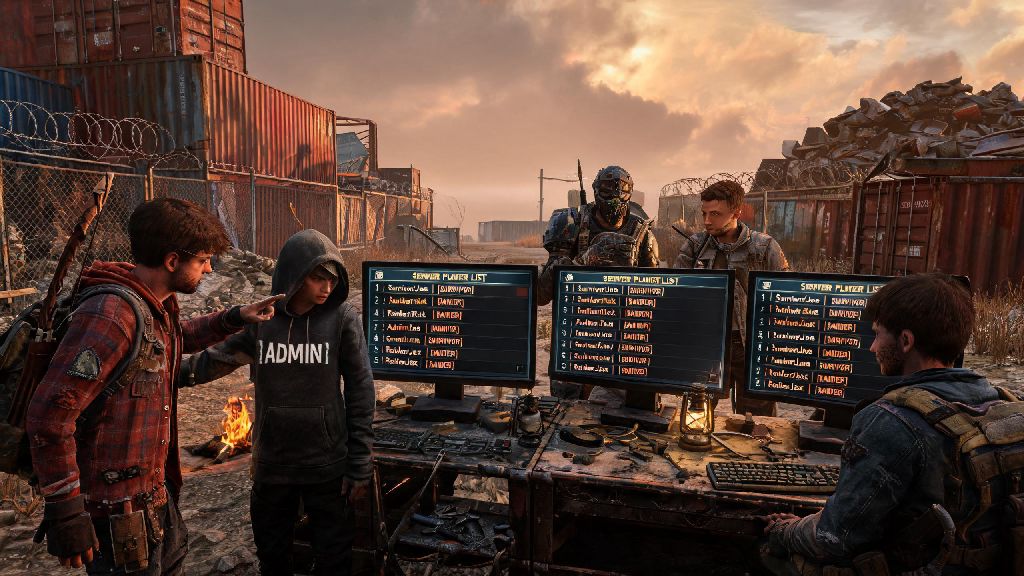
If you’ve ever spawned into a Rust server and wondered if the group that raided you last week is online, or if you’re an admin making sure no banned players slipped through your whitelist, knowing how to check player list in Rust is one of the most useful basic skills you can pick up. I’ve spent hundreds of hours hopping between vanilla and modded servers, and I still use this function at least three times every play session to avoid running into roaming clans or confirm my friends got into the same lobby. It’s not complicated, but different server types and platforms have slightly different steps, so it’s easy to get stuck if you only know one method.
How to Check Player List in Rust Using Default In-Game Controls
The fastest way to pull up a full player list on most unmodded servers doesn’t require any commands or extra tools at all. When you pull up the player list this way, you’ll see core details for every connected user, including their display name, ping, current playtime on the server, and any clan tags they have enabled. Default keybind for the player list is the Tab key for 99% of official and unmodded servers, no commands needed to access it.
If pressing Tab doesn’t open the scoreboard, first check your keybind settings under the “Interface” menu. Many players rebind the Tab key to open their inventory or a custom mod menu, so you might have accidentally changed it without realizing. For console players on PS5, PS4, Xbox Series X/S, or Xbox One, you can access the player list by holding down the Menu/Options button and selecting the Player List option from the radial menu that pops up. This works for all official console servers, though some custom console servers may hide the list for immersion reasons.
Useful Console Commands to Pull Up Rust Player Lists for Admins & Regular Players
If you’re having trouble pulling up the player list with your keybind, the console is the next most reliable option, and it works even if you’re still learning how to check player list in Rust on modded servers. To open the console on PC, press the F1 key by default. Console users can access the command bar only if the server admin has enabled it, usually through a custom menu option.
There are four core commands related to player lists, depending on your permission level on the server:
The "players" console command works on every server type, even modded ones that disable the default graphical scoreboard. I’ve used this command dozens of times when a modded server’s custom UI broke mid-game, and it never fails to pull up the full list in 2-3 seconds. Regular players can’t access the other three commands, so don’t waste time typing them if you don’t have admin permissions.
How to Check Player Lists on Modded & Private Rust Servers
Modded servers often have custom rules and UI changes that alter how you access player lists, so don’t panic if the default Tab key or players command doesn’t work right away. Many roleplay, PvE, and custom game mode servers hide the full player list by default to prevent metagaming, where players use out-of-game info to get an unfair advantage over others.
Most popular modded servers share live player counts and lists on their server page in the Rust launcher, so you can check who’s online before you even join to avoid wasting time loading into a server full of your enemies. Some servers also have Discord bots that show the live player list in a dedicated server channel, so you can check without even launching the game. I once avoided a 2-hour long RP raid by checking the server’s Discord player list 10 minutes before logging on, and saw that the rival gang I’d pissed off was all online. Saved me a ton of lost loot.
Private whitelisted servers usually let all members see the full player list both in-game and on their community pages, so you don’t have to worry about random players sneaking in. If you can’t find the player list on a private server, just ask one of the admins to point you to the right tool or command, they’ll almost always help you out.
Common Issues When Trying to View Rust Player Lists (And Quick Fixes)
Even if you know all the standard methods, you might run into issues accessing player lists on certain servers. Most of these problems have simple fixes that take less than a minute to test. The most common issue is the Tab key not opening the scoreboard. First check your keybinds, then try the F1 players command. If neither works, the server has intentionally disabled the public player list, usually for immersion or anti-cheat reasons.
Another common issue is the player list only showing a handful of names even though you know the server has 50+ slots filled. Some servers split the player list by team or proximity to prevent ghosting, so you’ll only see players near you or on your team by default. If you want to see the full list, you’ll need to use the console command or check the server’s external page on the launcher or Discord.
For admins, if your admin commands won’t pull up the full player list, first make sure you’re logged in with your admin permissions. Some servers require you to enter a password in the console first before you can access admin commands. If the server is having lag issues, the player list might take 10-15 seconds to load, so don’t spam the command or you might crash your client. Never share your admin login details with other players to avoid unauthorized access to your server's player lists and moderation tools. If none of these fixes work, reach out to your server host, they might have custom security settings that change how player data is accessed.
At the end of the day, whether you're a casual player checking for your friends or an admin moderating your community, knowing how to check player list in Rust saves you time and avoids unnecessary headaches. Don't stress if you can't get the default scoreboard to work on a new server, the F1 players command almost always works as a backup. I've used every one of these methods hundreds of times across every server type imaginable, and they're all reliable enough to keep in your back pocket for any situation. Next time you log into a new lobby, give these methods a try, you'll be surprised how much easier it makes your play sessions.