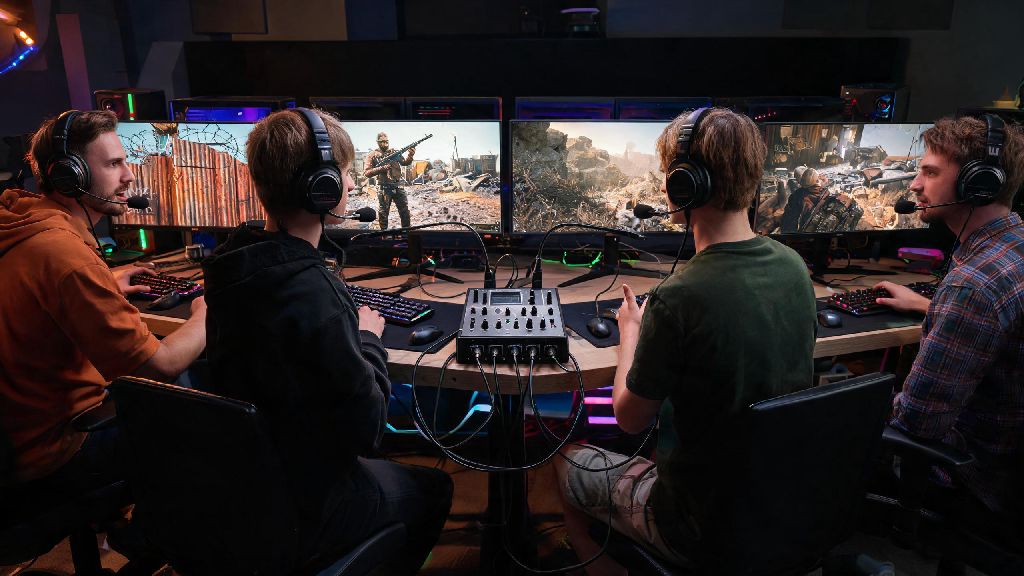
If you’ve ever wandered around a Rust server and heard someone blast iconic game soundtracks or silly meme audio over voice chat, you’ve probably wondered how they pull it off. Figuring out how to play music in Rust voice chat isn’t as complicated as it sounds, but you do need to follow a few specific steps to avoid audio distortion, low volume, or getting booted from a server for spamming. I’ve tested every common method over three years of playing Rust regularly, so I’ll walk you through what works, what doesn’t, and how to do it without annoying every player within a 100-meter radius.
How to Play Music in Rust Voice Chat: 3 Tested, Working Methods
There are dozens of hacky tricks floating around Reddit and Steam forums, but only three methods work reliably across 90% of public Rust servers right now. None of these require modifying game files, so you won’t risk an official Easy Anti-Cheat ban for using them. The three top methods are:
Each method has its own pros and cons, so pick the one that fits your setup and how often you plan to play audio over chat. I use the virtual audio cable method for most of my sessions, since it lets me switch between music and regular mic input in one click.
Key Settings to Adjust for Clear, Undistorted Audio
Even if you pick the right method, bad settings will make your audio sound garbled, quiet, or full of static, which will get you muted faster than if you didn’t play anything at all. If you’re using the virtual audio cable method to play music in Rust voice chat, you’ll also want to adjust the cable’s input gain in your system settings to match your mic’s usual volume. First, lower your music source volume to 60-70% before routing – if it’s too loud, it’ll clip and sound distorted to other players, even if it sounds fine on your end. Next, turn off Rust's built-in noise suppression because it will cut out quiet parts of songs or make audio sound muffled, especially if you’re playing softer tracks. Finally, test your audio in a private server first before using it on a public one. Ask a friend to join you and give honest feedback on the volume and clarity, so you don’t end up accidentally blasting distorted noise at a group of players building a base. It only takes a minute to test, and it saves you a lot of hassle later.
Unwritten Rules for Playing Music in Rust Voice Chat
The fastest way to get banned from a server is to ignore basic voice chat etiquette, and playing music is one of the most common reasons admins hand out mutes or temporary bans. One of the biggest mistakes new players make when they first learn to play music in Rust voice chat is forgetting to check server-specific rules first. Some roleplay servers only allow music if you’re holding an in-game boombox item, while PvP servers may ban non-communication audio entirely to avoid distracting players during fights. Don't play music nonstop for more than 30 seconds at a time – most players join voice chat to call out enemy positions or coordinate base builds, not listen to your entire playlist. If someone asks you to turn it off, just do it. Most server admins will side with the person asking you to stop, not you, even if you think your music is good. You should also avoid playing copyrighted music if you’re streaming your gameplay, because you can get a DMCA strike on your channel, and some servers have explicit rules against copyrighted audio to avoid liability for streamers playing on their servers.
Common Issues and How to Fix Them Fast
Even if you follow every step perfectly, you might run into small issues that break your audio. The most common problem is no audio coming through at all, which is almost always a settings mismatch. Double check that you set your default input device in Rust’s audio settings to the virtual cable or mixer input, not your regular mic. If your audio is too quiet or too distorted, adjust the gain on your mixer or virtual audio cable, and make sure you didn’t turn on mic boost in your system settings. Mic boost adds extra gain that will make even low-volume audio clip badly in voice chat. If other players can hear both your music and an echo of your own voice, turn off speaker playback of the audio you’re routing, so it doesn’t loop back through your mic. If you get a warning from an admin for playing audio, stop immediately. Arguing with admins over a 10-second meme clip is never worth getting a permanent ban from your favorite server.
At the end of the day, figuring out how to play music in Rust voice chat is a fun way to make your sessions more memorable, as long as you do it respectfully and follow server rules. You don't need expensive gear or technical expertise to pull it off – even a free virtual audio cable app and 5 minutes of setup will get you up and running. If you take the time to test your settings and follow basic etiquette, you'll be able to share your favorite tracks or funny audio clips without annoying other players or risking a ban. Next time you log into your favorite server, give one of the methods we covered a try, and see how your group reacts.