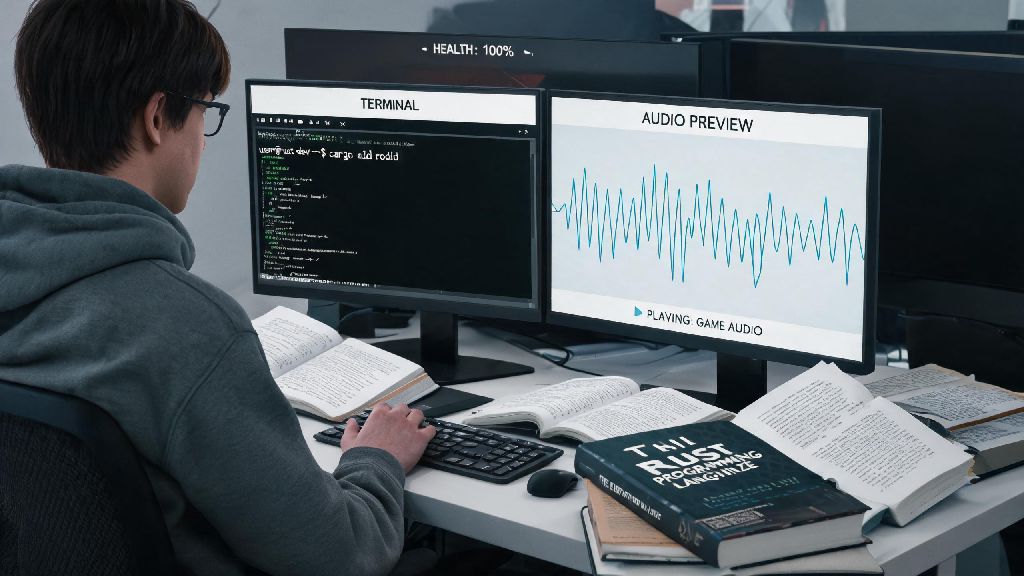
If you’ve ever built a small Rust tool, game, or media player prototype, you’ve probably wondered how to add audio functionality to your project. Learning how to play music on Rust is far simpler than many new developers assume, and it opens the door to all sorts of creative projects, from custom alarm clocks to indie game background tracks. I’ve tested most of the popular Rust audio crates over the past two years for side projects, and I’ve narrowed down the easiest, most reliable methods that work across Windows, Mac, and Linux systems. I’ve lost count of how many times I spent an hour troubleshooting a no-sound error just to realize I forgot to enable the MP3 feature flag for a crate, so I’ve included all the small fixes I wish I knew when I started. You don’t need advanced Rust knowledge to follow this guide, just a basic understanding of Cargo and project setup.
How to Play Music on Rust Using the Rodio Crate
For most basic to intermediate use cases, Rodio is the best starting point for adding music playback to your Rust project. It’s a pure Rust audio library built on top of the cross-platform CPAL audio framework, so it works out of the box across all major operating systems with no extra setup required. The library supports all common audio formats including WAV, MP3, FLAC, and OGG, and includes built-in features for volume adjustment, looping, pausing, and playing multiple audio tracks at once.
To get started, first create a new Rust project with cargo new, then add Rodio as a dependency in your Cargo.toml file. Make sure to enable feature flags for any audio formats you plan to use, as many are disabled by default to keep binary sizes small. Next, write a simple script that imports Rodio’s core modules, loads your chosen music file from your local storage, creates an audio stream, and plays the file. The whole process takes less than 10 lines of code for a basic working playback tool.
You don’t need to install any system-level audio libraries to use Rodio, which is its biggest benefit for cross-platform projects. I’ve used it for everything from pomodoro timer alert sounds to background music for a 2D puzzle game I built last year, and it worked flawlessly across every device I tested it on. The only downside is that it doesn’t support more advanced features like custom audio effects or streaming from online sources, so you’ll need a different crate if those are requirements for your project.
Key Prerequisites Before You Start Playing Audio in Rust
Before you jump into writing code, make sure you have these core requirements sorted to avoid common, easy-to-fix errors that trip up most new developers working with Rust audio:
You should always test your audio setup with a short WAV file first before moving to larger music files, as it makes troubleshooting much faster if something goes wrong. WAV files have no licensing restrictions and are supported by every Rust audio crate, so you won’t have to worry about feature flags or codec issues while you’re testing your basic setup. If you’re building a project that will be distributed to other users, make sure to include licensing information for any music files you bundle, to avoid copyright violations down the line.
Alternative Crates for More Advanced Music Playback Use Cases
Rodio is perfect for basic use cases, but if you need more control or support for less common features, there are several other high-quality Rust audio crates to choose from. The first option to consider is CPAL, the low-level cross-platform audio library that Rodio is built on top of. CPAL gives you full control over every part of the audio stream, from sample rate to buffer size, making it ideal if you’re building a custom audio mixer, digital audio workstation, or other tool that needs fine-grained audio control. The only downside is that you have to write a lot more boilerplate code, and you’ll need to handle audio decoding separately if you’re working with compressed audio formats.
Another great option is Symphonia, a pure Rust audio decoding library that supports almost every audio format in use today, including less common ones like AAC, WMA, and ALAC. I used Symphonia for a custom local media player I built last year, and it handled every obscure audio file I had in my 20-year-old music library without a single issue, which Rodio couldn’t do at the time. It’s optimized for both speed and memory usage, so it’s a great fit for media player applications that need to handle large libraries of diverse audio files.
If you’re building a game in Rust with the Bevy engine, you can skip standalone audio crates entirely and use Bevy’s built-in audio plugin. It integrates seamlessly with the rest of the Bevy ecosystem, so you can trigger music playback based on in-game events without writing any custom audio handling code. It supports all common audio formats and includes built-in features for spatial audio, which is perfect for 3D game projects.
Common Issues and Fixes for Rust Audio Playback
Even with the most well-documented crates, you’re likely to run into a few issues when you first start working with audio in Rust. The most common problem is no sound output at all, and 90% of the time this is caused by one of two issues: either your file path is incorrect, or you haven’t enabled the required feature flag for your audio format. Double check that your file path is relative to your project root, not your src folder, and make sure you’ve added the right feature flags for your file type in Cargo.toml.
If you’re hearing choppy, stuttering, or distorted audio, this is almost always caused by running your code in unoptimized debug mode. Rust’s debug builds prioritize fast compile times over runtime performance, so they often can’t process audio streams fast enough for smooth playback. Always test audio playback in release mode if you run into performance issues, as the optimized build will eliminate almost all stuttering for standard music files. If you still have stuttering in release mode, you can try increasing the audio buffer size in your crate’s settings to reduce the chance of underruns.
The third most common issue is cross-platform compatibility errors, where your code works fine on your development machine but breaks when you run it on another operating system. This usually happens if you’re using a crate that relies on system-specific audio libraries like PulseAudio or CoreAudio, rather than pure Rust cross-platform tools. Switching to Rodio or CPAL will almost always fix this issue, as both are designed to work the same way across all operating systems with no system-specific dependencies. If you’re running your code on a headless server without physical audio hardware, you’ll need to set up a virtual audio device to stream or record audio output.
Whether you’re building a small personal tool or a full-featured media application, figuring out how to play music on Rust doesn’t have to be a frustrating process. Starting with Rodio for basic use cases will get you up and running in minutes, and you can move to more advanced crates like Symphonia or CPAL as your project’s needs grow. Take time to test your code across different operating systems if you plan to share it with others, and always double check file paths and feature flags if you run into playback errors. With a little practice, you’ll be able to add polished audio functionality to any Rust project you dream up.