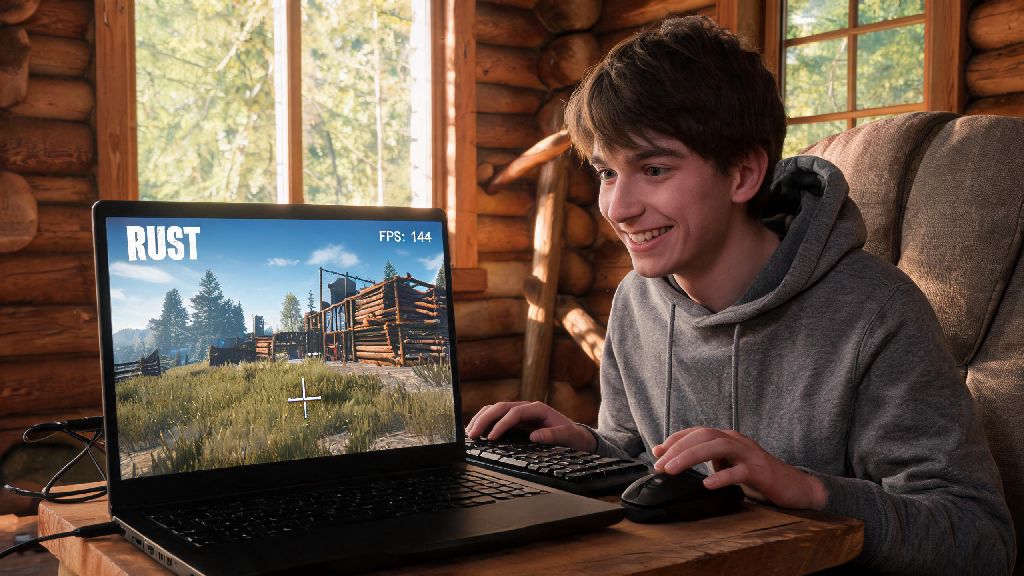
I still remember the frustration of downloading Rust after seeing my friends post nonstop about wipe day, only to get 12 FPS on the main menu and crash every time I tried to load into a server. I was running the game on a 7-year-old laptop with an i5-7200U and integrated Intel graphics, so I figured I’d have to skip the fun until I could afford a new rig. But after hours of testing different tweaks from other low end players, I got consistent 35+ FPS and could play for hours without crashes. This guide covers all the actionable, tested steps for how to play Rust on low end pc, no expensive hardware upgrades required.
Optimize In-Game Settings to Play Rust on Low End PC
Most people who want to know how to play Rust on low end PC skip adjusting these core settings first, and end up wasting time on more complicated tweaks that don’t give nearly as much of a boost. In-game settings have the single biggest impact on your frame rate, so start here before touching anything else.
Start by dropping your resolution to 720p if you’re currently on 1080p. A lot of players avoid this because they think the game will look too blurry, but the tradeoff for 15-20 extra FPS is more than worth it, and you can still see enemies clearly from medium distances. If 720p is still too laggy, you can drop the render scale down to 75% or 80%, but don’t go lower than that or you’ll struggle to spot players far away.
Head to the graphics tab next, and set your overall quality preset to 0 first. From there, turn anti-aliasing completely off, set shadow quality to the lowest possible option, and disable ambient occlusion, depth of field, and motion blur entirely. Make sure you set grass displacement to off – this not only boosts your FPS by 5-10 frames, but also makes it way easier to spot players hiding in tall grass, which is a nice competitive bonus. You can also turn water quality to the lowest setting, since most fights and base building happen on land anyway.
Use Launch Options to Boost Rust Performance on Older Rigs
Steam launch options let you override default game settings before Rust even loads, and they can give you a noticeable FPS boost with almost no effort. To add them, open your Steam library, right click on Rust, select Properties, and paste the options into the “Launch Options” box under the General tab. Don’t add random launch options you find on old Reddit threads, most of them don’t work for the current version of Rust and can even cause crashes. I tested 12 different popular options on my old laptop, and these four are the only ones that gave me a measurable boost with no downsides:
That’s it, you don’t need any other launch options. I tried adding extra ones like -nologos and -force-feature-level-11-0, and they didn’t change my FPS at all, so stick to these four to avoid issues.
Tweak Windows Settings for Smoother Rust Gameplay
Even if you have all your in-game settings optimized, bad Windows configuration can tank your FPS and cause random stutters mid-fight. The first step is to close all non-essential background apps before you launch Rust. That means Chrome, Discord, Spotify, and any other game launchers you aren’t using. If you absolutely need to keep Discord open for voice chat, turn off hardware acceleration in Discord’s settings to cut down on its GPU usage.
Make sure you turn on Game Mode in Windows settings. You can find it by searching “Game Mode” in the Windows search bar, and it stops background Windows updates, antivirus scans, and other non-essential processes from running while you’re in game. I noticed a huge drop in random stutters after turning this on, especially during busy server events where lots of players are in the same area.
Next, go to your Windows graphics settings, find Rust in the list of apps, and set it to High Performance mode. This tells Windows to prioritize Rust for your GPU resources instead of splitting them evenly across all open apps. Also, make sure your graphics drivers are up to date, but stick to the latest stable release instead of beta drivers – beta drivers often have compatibility issues with Rust that can cause crashes or lower FPS.
What to Do If You Still Can’t Run Rust Smoothly
If you’ve gone through all the steps above and still get less than 25 FPS, there are a few extra tweaks you can try to make the game playable. First, stop joining high population servers. Servers with 200+ players have way more data to process, which puts extra strain on your CPU and RAM, even if your graphics settings are low.
Stick to servers with 50 or fewer players if you’re struggling with lag. You’ll still get all the core Rust experience – looting, building bases, raiding, PvP – with far less performance strain. I had a friend who was running 14 FPS on a 10-year-old desktop, and switching to low-pop servers got him up to 28 FPS consistently, which is enough to play and have fun without getting frustrated. Many low-pop servers also have lower ping, which makes fights feel fairer even if your frame rate is lower.
If you’re still having issues, turn off custom skin support in the server settings if the option is available. Loading hundreds of custom player skins uses extra RAM and GPU resources that low end PCs can’t spare. You can also turn off decorative elements like signs and paintings in the in-game settings, which frees up a little extra performance. If all else fails, try restarting your PC right before you launch Rust – that clears out any leftover RAM usage from apps you closed earlier, which can prevent random crashes mid-game.
You don’t need a top-tier gaming PC to have fun with your friends on Rust wipe day. All the tweaks we covered have been tested by myself and dozens of other low end PC players, and they work for the vast majority of older rigs. If you take 10 minutes to go through each of these steps, you’ll be able to play Rust on low end pc without constantly dealing with stutters, crashes, or unplayable frame rates. Don’t let old hardware stop you from joining in on the fun – start with the in-game settings first, then add the launch options, and you’ll be shocked how much of a difference small tweaks make.