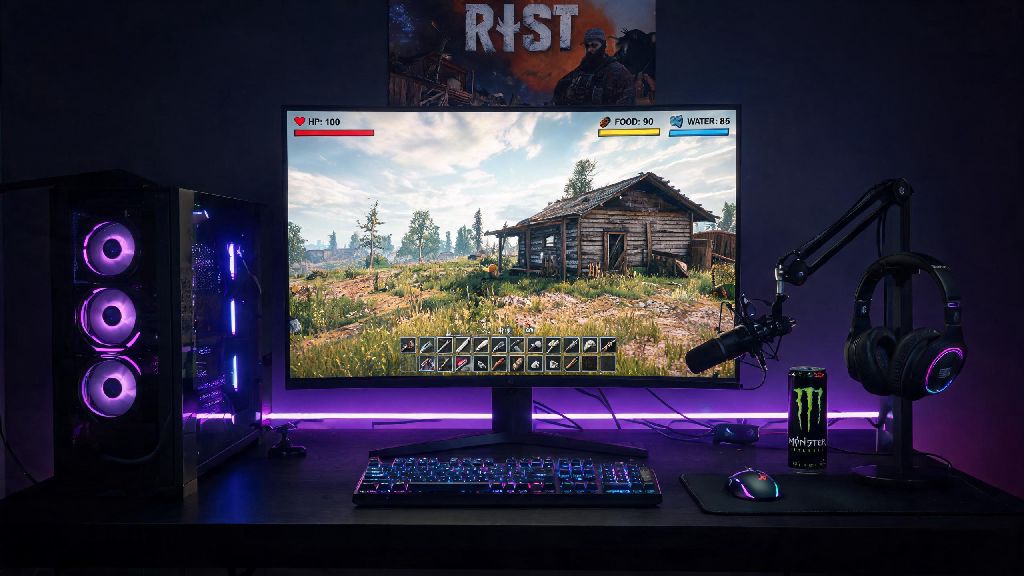
If you’ve spent any time watching top Rust streamers or competitive players, you’ve probably noticed many of them run a non-standard screen resolution. Learning how to play Rust stretched can give you small but meaningful advantages that add up over dozens of PvP encounters, but it’s not a one-size-fits-all fix for every playstyle. I’ve tested over 12 stretched resolution combinations over the past two years, and I’ve broken down exactly what works, what doesn’t, and how to set it up without ruining your game.
How to Play Rust Stretched: Correct Setup Steps
The first mistake most new players make is jumping straight to adjusting their in-game resolution without prepping their system first. This can lead to stretched UI elements that make it impossible to read health bars or inventory, or even game crashes mid-fight. Follow these steps in order to get the best results:
Don’t skip the desktop resolution step, even if you see tutorials telling you to only adjust in-game settings. If your GPU isn’t set to support the custom resolution first, you’ll run into constant input lag that negates any benefits you get from the stretched format. If you’re still on the fence about trying how to play Rust stretched, start with a 1440x1080 ratio first, as it has the least distorted scaling of all common stretched resolutions.
Key Benefits of Playing Rust Stretched
Stretched resolution isn’t just a trend for pro players – it offers tangible benefits that fit a lot of casual and competitive playstyles. The biggest advantage for most people is wider apparent horizontal FOV. While your actual field of view number doesn’t change, stretching a 4:3 resolution to fit a 16:9 monitor makes enemy models appear wider, making them much easier to hit during close to mid-range PvP fights.
You’ll also get a noticeable FPS boost in most cases, especially if you’re running a mid-tier PC. Lower resolution means your GPU has fewer pixels to render, so you’ll get higher, more consistent frame rates even in crowded areas like outposts or large group bases. I went from an average of 75 FPS on native 1920x1080 to 110 FPS on 1280x960 stretched on my old RTX 2060, which made a huge difference in fast-paced fights.
Another underrated benefit is reduced visual clutter. Stretched resolution makes small background details like grass and distant foliage appear less sharp, so you can spot moving enemies faster without getting distracted by unnecessary graphics. That said, this does come with tradeoffs we’ll cover next.
Drawbacks to Consider Before Switching
Stretched resolution isn’t for everyone, and it’s important to weigh the downsides before you commit to changing your settings. The most common complaint is distorted vertical scaling. Jumps and vertical movement will feel much faster than you’re used to, so it can take 10-20 hours of playtime to get fully adjusted to the new feel. If you play multiple FPS games besides Rust, you might also find it hard to switch back and forth between native and stretched resolutions.
You’ll also lose some clarity for long-range fights. While enemy models are wider, they also appear shorter and less sharp at distances over 200 meters, so it can be harder to line up headshots with bolt action rifles or snipers. If you spend most of your time on Rust farming or building bases instead of fighting, the stretched format will probably be more annoying than helpful.
One mistake I see a lot of new players make is copying the exact resolution their favorite streamer uses without testing it first. A resolution that works for a 24 inch 144hz monitor might be completely unreadable on a 27 inch 4k monitor, so always test multiple ratios before you settle on one.
Tips to Optimize Your Stretched Rust Gameplay
Once you’ve got your stretched resolution set up correctly, there are a few small tweaks you can make to get even better performance and visibility. First, make sure you turn off vertical sync both in your GPU settings and in-game. Vsync adds input lag that will make your stretched gameplay feel sluggish, even if you’re getting high FPS.
Next, adjust your mouse sensitivity to match the new scaling. Stretched resolution makes horizontal movement feel faster, so you might need to lower your DPI or in-game sensitivity by 10-15% to keep your aim consistent. I recommend using an aim trainer for 10 minutes a day for the first week to build muscle memory with your new settings.
If you play a lot of long-range PvP, consider keeping a native resolution profile saved that you can switch to when you’re doing sniping runs. Most players who do this bind the resolution switch to a function key on their keyboard, so they don’t have to close the game to change settings. Just make sure you don’t adjust settings mid-fight, as you’ll be vulnerable for the 2-3 seconds it takes for the resolution to switch.
Finally, don’t feel pressured to keep using stretched resolution if it doesn’t feel right after a couple weeks. Some players never get used to the distorted scaling, and that’s totally fine. The best settings are the ones that feel most comfortable for you, not the ones the top 1% of players use.
At the end of the day, learning how to play Rust stretched is a personal choice that depends entirely on your playstyle, hardware, and what you want to get out of the game. If you’re a PvP-focused player looking for every small advantage you can get, it’s well worth taking the time to test a few different stretched resolutions and find one that works for you. If you’re more of a casual player who likes building and exploring, you probably won’t get enough benefit to justify the learning curve. Either way, take the time to test settings for yourself instead of just copying what you see online – you might be surprised by what works best for your playstyle.