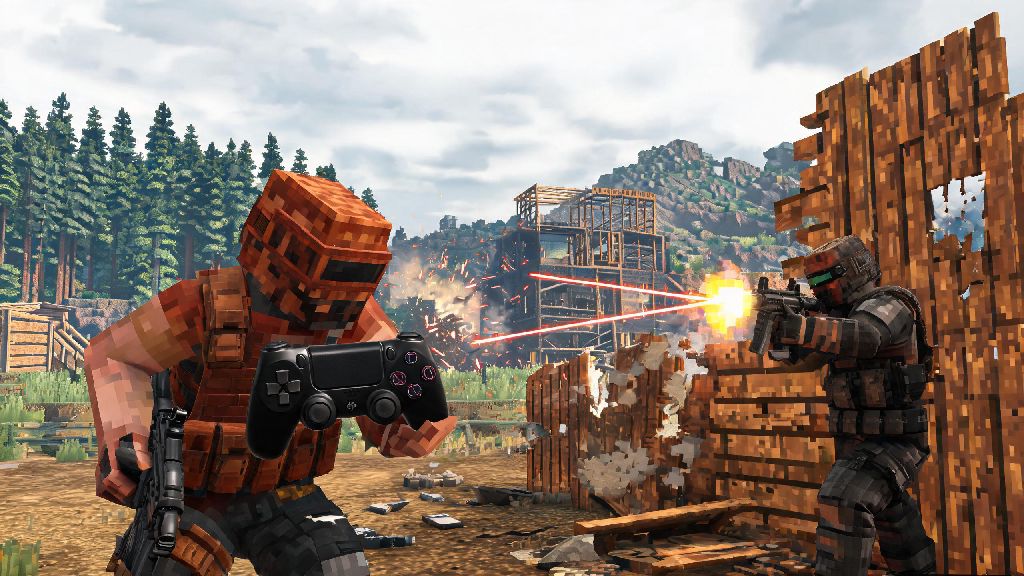
If you’ve ever found your wrists cramping after three hours of dodging bear attacks and raiding enemy bases, you’ve probably wondered how to play Rust with controller instead of a mouse and keyboard. For years, PC Rust players have written off controller support as unplayable, but recent updates and custom settings make it a totally viable option for casual players and even competitive folks who prefer the feel of a gamepad. I’ve been testing controller play on Rust for six months now, and while it’s not for everyone, I’ve managed to hold my own in 1v1 PvP fights and build large bases without ever touching a mouse. This guide walks you through everything you need to get set up, avoid common mistakes, and adjust settings to match your playstyle.
How to Play Rust With Controller: Full PC Setup Walkthrough
First, you don’t need any fancy paid software to get controller support working for Rust on PC. The game has native partial controller support built in, and Steam’s built-in input tools let you customize every part of your layout for free. Start by plugging in your controller (or connecting it via Bluetooth) and opening your Steam library settings. Navigate to the “Controller” tab and enable support for your specific controller type, whether that’s Xbox, PlayStation, Switch Pro, or a third-party gamepad. Always make sure your controller firmware is updated before starting to avoid random disconnections or input lag mid-game.
Once Steam recognizes your controller, launch Rust and open the in-game settings menu. Head to the “Controls” tab and toggle “Controller Enabled” on. You’ll see default binds populate immediately, but you don’t have to stick with those. If you want more customization options, exit Rust and right-click the game in your Steam library, select “Properties,” then “Controller,” and turn on “Steam Input” to access fully custom bind options, motion controls, and sensitivity curves. When you first set up how to play Rust with controller, you’ll notice the default sensitivity feels way too fast for precise aiming, so we’ll adjust that next.
Essential Controller Settings to Improve Rust Gameplay
Small tweaks to your settings can make the difference between landing a perfect headshot and missing an easy target entirely. Start with sensitivity: most casual players do best with a horizontal sensitivity between 40 and 50, and vertical sensitivity 10 to 15 points lower than horizontal. This makes turning fast enough to react to surprise attacks while keeping your aim steady for close-range fights. Set your inner deadzone to the lowest possible value without stick drift — a deadzone that’s too high will make small aim adjustments feel sluggish, while one that’s too low will cause your camera to drift when you’re not touching the stick.
Default controller binds for Rust are notoriously clunky, so you’ll want to remap core actions to more accessible positions. You don’t have to copy pro player binds exactly, but these are the changes that made the biggest difference for my gameplay:
Leave aim assist turned on unless you specifically prefer playing without it. The in-game aim assist is very mild, only pulling your crosshair slightly toward nearby targets, and it won’t give you an unfair advantage over other players. Avoid binding core actions to the D-pad, because you have to take your thumb off the movement stick to use it, which slows you down way too much in fights or when you’re running from predators.
Pros and Cons of Playing Rust With a Controller
Controller play isn’t for every type of Rust player, so it’s important to weigh the benefits and drawbacks before you commit to switching. The biggest upside is comfort: I used to get frequent wrist pain after 4+ hour play sessions with a mouse and keyboard, and switching to controller eliminated that entirely. It’s also way easier to play from the couch if you have your PC connected to a TV, and driving cars, flying helicopters, and navigating terrain feels far more intuitive with analog sticks than a keyboard.
That said, there are clear downsides to consider. The biggest one is long-range aim: a mouse will always let you make faster, more precise adjustments for sniper shots across the map, so you’ll be at a clear disadvantage in those fights against mouse users. Inventory management is also slower with a controller, since you have to navigate menus with a cursor instead of clicking directly on items. You will have a disadvantage in long-range sniper fights against mouse users, so if you only care about competitive end-game PvP on large 100-player servers, controller might not be the best pick for you.
Many people who are new to figuring out how to play Rust with controller worry they’ll never be able to compete, but that’s not true for most casual server environments. I play almost exclusively on 20-30 player PvE and small PvP servers, and I’ve never felt like my controller puts me at a meaningful disadvantage. The tradeoff for comfort is more than worth it for my playstyle, and it might be for yours too.
Common Controller Play Mistakes to Avoid in Rust
Most new controller players run into the same easily fixable mistakes their first few weeks of play. The most common one is leaving default sensitivity turned all the way up. Default sensitivity is set to 100, which makes it almost impossible to line up precise shots, even with aim assist turned on. Spend 10 minutes in a creative server testing different sensitivity levels until you find one that feels natural for both turning and aiming.
Another frequent mistake is ignoring deadzone settings entirely. If you notice your camera drifting when you’re not touching the right stick, or small adjustments don’t register, your deadzone is set incorrectly. Test your deadzone by moving the right stick just slightly until your camera starts moving, then set your inner deadzone just above that point to eliminate drift without sacrificing responsiveness.
The biggest mistake you can make is downloading third-party aim assist software or macros to make your controller feel more competitive. Never use third-party aim assist software or macros, because most Rust server anti-cheat systems will detect it and ban you permanently, no exceptions. The native in-game support is more than enough to play well, and you won’t risk losing your account or access to servers you play on regularly.
At the end of the day, learning how to play Rust with controller is all about finding what works for your playstyle, not chasing perfect meta settings. If you prioritize comfort over top-tier competitive performance, you’ll have no problem enjoying the game, building bases, and even winning PvP fights with a bit of practice. Spend 10 minutes adjusting your settings before your first run, and don’t get discouraged if you miss a few shots your first few sessions. After a week of regular play, you’ll probably forget you’re not using a mouse and keyboard at all.