You just wrapped a 3-hour Rust session where you built a solid base, stashed enough scrap to buy a full metal kit, and teamed up with two random players who didn't immediately betray you. Then you log off for the night, restart your PC the next day, and realize you have no clue how to get back to that exact server. I've been there myself, after a particularly good session on a 2x server where I managed to take down a clan base with two randoms I met at the outpost, I lost the server after my PC crashed mid-session and I had to reinstall Windows. If that sounds familiar, you're far from alone. Learning how to find Rust server I played on is one of the most common questions new and casual Rust players search for every week. It doesn't matter if you play on PC via Steam or console, there are simple ways to pull up your server history even if you didn't save the IP or favorite the server ahead of time.
Check Your In-Game Server History First When Learning How to Find Rust Server I Played On
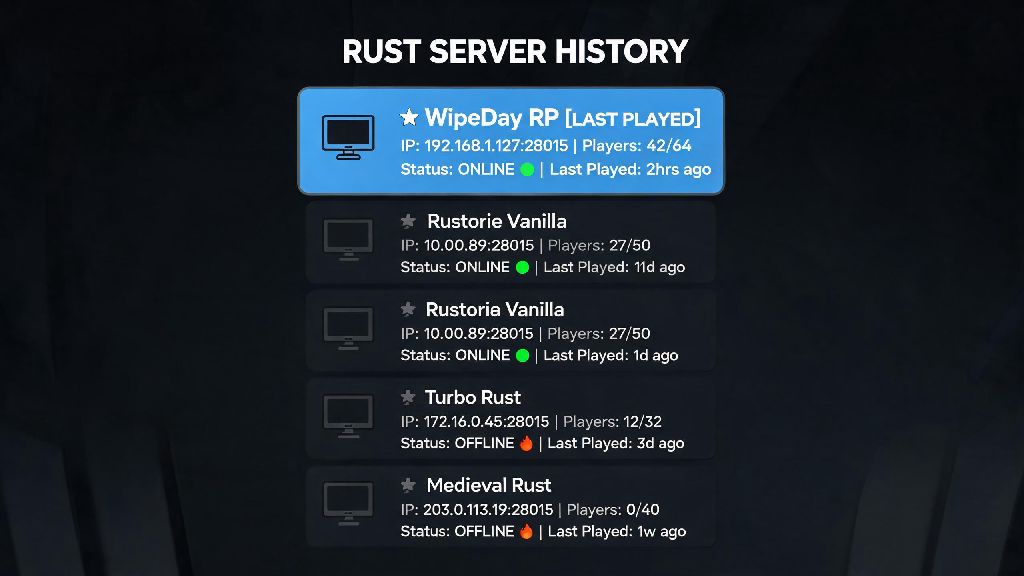
The first place you should look is right in the Rust game itself, no extra tools required. Most players skip this step because they assume the history only holds the last 2 or 3 servers they joined, but it actually stores up to 30 days of server visits by default, even if you installed a game update or restarted your PC since your last play session. To access it, launch Rust, click the Play button on the main menu, then navigate to the History tab at the top of the server browser window. Servers you've joined in the last 30 days will show up automatically, sorted by most recent first. If you don't see it right away, use the filter tools to narrow results by map size, player count, or mod type if you remember those small details. The only catch here is that this history will erase if you manually clear your Rust game cache, or if you uninstall and reinstall the game entirely. That's why it's a great first step, but not the only option if it's been longer than a month since you joined the server.
Pull Your Rust Join History Directly From Steam
If you play Rust on PC via Steam, you don't even need to launch the game to find your old server list. Steam keeps a separate log of every server you've joined across all source engine games, including Rust, for up to 90 days, which is three times longer than the in-game history. I use this method all the time when I don't feel like waiting for Rust to load, it's way faster than navigating the clunky in-game server browser. To find this log, open your Steam desktop app, click the View tab at the top of the screen, select Servers from the dropdown menu, then navigate to the History tab in the pop-up window. You can filter the list to only show Rust servers by typing "Rust" into the game filter bar at the bottom of the window. This log is way more reliable than in-game history, because it doesn't get erased when you update Rust or clear your in-game cache. The only time this log disappears is if you manually clear your Steam web cache or reset your Steam account settings. If you find the server you want here, you can right click it and select "Connect to server" directly from the Steam window, no need to go through the in-game browser at all.
Use Third-Party Rust Server Tracking Tools For Older Or Modded Servers
If it's been more than 90 days since you joined the server, or you play on console where Steam history isn't available, third-party Rust server tracking tools are your next best bet. These platforms crawl public Rust servers 24/7, storing historical data on server names, IPs, mod sets, and even player join history if you've ever linked your player ID to the platform. First, you'll need to find your Rust player ID, which is the unique 17-digit number tied to your account. You can find this in your Steam profile or your console account settings, depending on what platform you play on. Once you input your player ID into the tracking tool, it will pull a full list of every public Rust server you've ever joined, even from years prior. The only downside is that private, whitelisted servers won't show up on these tools, since they don't appear in public server browsers. But for 90% of public servers, this is the most reliable method available, even if the server has changed its name or updated its mod pack since you last played. If you only remember small details like the server having weekly map wipes or a no-offline-raiding rule, you can filter results by those traits to narrow down your search even faster.
Troubleshooting: What To Do If You Still Can't Find Your Old Rust Server
Sometimes even all the above steps won't work, especially if the server was shut down, renamed completely, or switched to a private whitelist after you played. But there are a few extra tricks you can try before giving up entirely, most of which take less than 5 minutes to test out:
If none of these work, there's a high chance the server was taken offline by its owner, which is common for small community servers that only run for a few months at a time. Server owners often shut down small servers if they can't cover hosting costs or if the player count drops too low, so don't take it personally if you can't track the server down. In that case, you can look for similar servers with the same mod set and rules to start a new base, and remember to favorite any server you enjoy moving forward so you don't lose it again. As a quick pro tip, take 2 seconds to favorite a server right after you join it if you're having fun, it will save you hours of searching later.
Losing track of a Rust server you spent hours building on is frustrating, but it almost never has to be permanent. Between in-game history, Steam logs, third-party tracking tools, and simple troubleshooting tricks, learning how to find Rust server I played on is way easier than most players assume. You don't need any technical skills to pull up your history, and most steps take less than 2 minutes to complete. If you do find the server you're looking for, take a second to save its IP or favorite it so you don't have to go through the same search again later. Even if you can't find the exact server you wanted, you might stumble on a new community you love even more while you're looking.