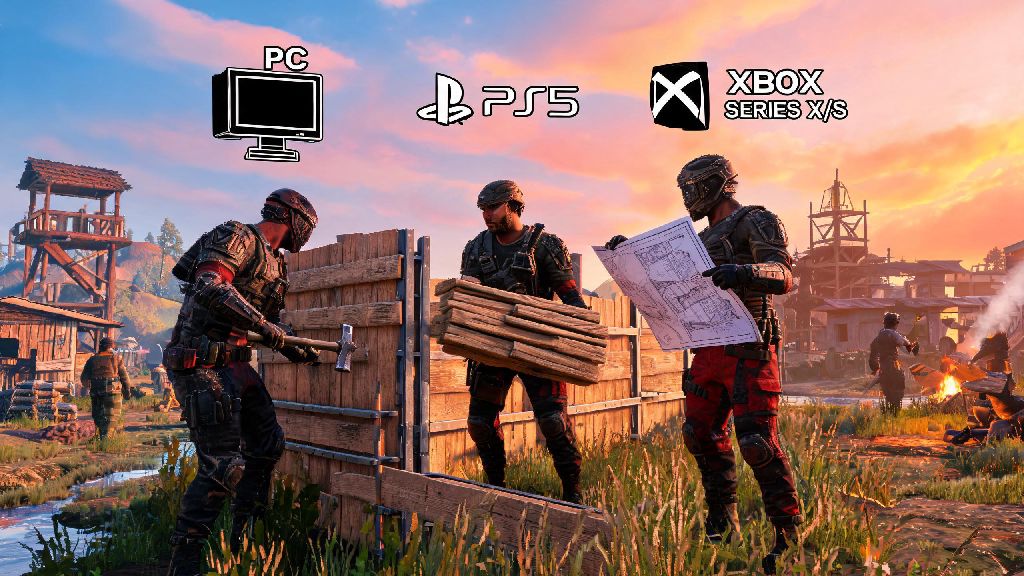
There’s nothing more frustrating than buying Rust, only to realize you can’t immediately join your friend who’s playing on a different platform. If you’ve been scrolling forums trying to figure out how to play crossplay on Rust, you’re not alone. Thousands of players run into confusion around which platforms support crossplay, what settings you need to adjust, and why you keep getting connection errors when trying to join a mixed-platform lobby. I’ve spent dozens of hours testing crossplay across PC, PS5, and Xbox Series X/S over the last six months, so I’ve broken down every step you need to follow, plus fixes for the most common issues that pop up.
How to Play Crossplay on Rust: Pre-Game Setup Checks
Before you mess with any in-game settings, there’s one critical detail most guides skip: Rust PC (Steam edition) and Rust Console Edition do not support crossplay with each other. That means if you own the Steam version of Rust on PC, you can only play with other PC players, regardless of what console your friend owns. Crossplay only works between different console platforms, or between the Microsoft Store PC version of Rust and Xbox consoles, if you have cross-save enabled through your Microsoft account.
Next, confirm all players have the latest version of the game installed. Outdated patches are the #1 cause of crossplay lobbies not showing up, even if you have all the right settings turned on. For console players, make sure your system software is also updated, as old console firmware can block cross-platform connection requests.
The last pre-setup check is to make sure every player in your group has their platform’s crossplay settings enabled outside of Rust itself. That means:
In-Game Settings to Enable Rust Crossplay Lobbies
Once you’ve confirmed all your external settings are correct, boot up Rust and head to the main menu to adjust your in-game crossplay options. First, navigate to the Settings tab, then select the Gameplay submenu.
Scroll down until you see the Cross-Play toggle, and make sure it’s switched to On. This setting is turned on by default for most new installs, but if you’ve adjusted your privacy settings in the past, it may have been disabled automatically. This is the core setting that controls whether your Rust crossplay sessions work at all, so it’s always the first thing I check when someone in my group can’t join.
Next, if you’re hosting a lobby for your group, you’ll need to adjust your server visibility settings to make it accessible to cross-platform players. When creating a new private server, look for the "Cross-Play Allowed" checkbox under the Server Settings tab, and make sure it’s checked. If you leave this box unchecked, only players on your exact platform will be able to find and join your lobby.
If you’re joining a friend’s lobby instead of hosting, you don’t need to adjust any server settings, but you will need to make sure you’re searching for crossplay-enabled servers in the browser. Use the filter menu on the server search page to toggle "Show Cross-Play Servers" to On, otherwise cross-platform lobbies won’t show up in your search results at all. I can’t tell you how many times I’ve spent 20 minutes looking for a friend’s lobby, only to realize I forgot to turn this filter on.
How to Add Cross-Platform Friends to Your Rust Party
One of the most confusing parts of Rust crossplay is figuring out how to add friends who are on a different platform, since you can’t just search for their PlayStation or Xbox gamertag directly in the in-game menu.
You have two options for adding cross-platform friends: the first is to link your Rust account to your Facepunch Studios account, which is the developer’s official account system. Once you link all your platform accounts to your Facepunch account, you can search for your friend’s Facepunch username directly in the in-game friends menu, and send them a friend request that works across all platforms. This is the most reliable method, as it doesn’t rely on your platform’s built-in friend system.
The second option is to add each other as friends on your respective platform’s network, if you’re playing between consoles. For example, if you’re on Xbox and your friend is on PlayStation, you can add each other using your Microsoft and Sony accounts through the cross-platform friend search built into both console systems. Once you’re friends across platforms, their Rust lobbies will show up in your in-game friends list automatically. This makes setting up Rust crossplay lobbies much faster in the future, since you won’t have to share server codes every time you want to play.
Whichever method you use, make sure you accept the friend request before you try to join each other’s lobbies. Private Rust lobbies only allow access to players who are on your in-game friends list, so even if you have the correct server code, you won’t be able to join if you haven’t accepted the friend request first.
Common Rust Crossplay Issues and Simple Fixes
Even if you follow every setup step perfectly, you might still run into issues with Rust crossplay. I’ve run into almost every possible error over the last year of playing cross-platform with my friends, so these are the fixes that work 90% of the time.
First, if you can see your friend’s lobby but get a "connection failed" error when you try to join, the most common cause is a NAT type mismatch between your networks. If one player has a Strict NAT type and another has an Open NAT type, you won’t be able to connect directly. To fix this, restart your router, or enable UPnP in your router’s settings to open up the required ports for Rust. If that doesn’t work, you can all join a public crossplay server first, then invite each other to a party from there, which often bypasses NAT mismatch issues.
Second, if crossplay lobbies aren’t showing up in your server browser at all, double-check that you don’t have any filter settings enabled that are hiding them. A lot of players accidentally enable the "Same Platform Only" filter without noticing, which blocks all crossplay servers from appearing. You should also make sure you’re not searching for servers with a mod list that’s incompatible with your platform, as some PC mods aren’t supported on console, even if the server says it’s crossplay enabled.
Third, if your crossplay toggle is greyed out in the in-game settings, that usually means your platform-level crossplay setting is turned off. Go back to the pre-game setup steps we covered earlier, and double-check that cross-play is allowed in your console or Microsoft Store account privacy settings. You may need to restart Rust after adjusting these settings for the change to take effect.
One last thing to note: crossplay does not affect input-based matchmaking by default. If you want to only play against other controller players, you can enable the Controller Only Matchmaking toggle in the gameplay settings, which will still let you play cross-platform, but only with other controller users, no mouse and keyboard players. These small fixes will save you hours of troubleshooting Rust crossplay errors so you can spend more time playing and less time scrolling support forums.
At the end of the day, figuring out how to play crossplay on Rust doesn’t have to be a headache, as long as you remember the core rules around platform compatibility and check your settings both in and outside of the game. Most issues come from small, easy-to-miss toggles, not major bugs, so a quick double-check of your settings will fix almost any problem you run into. Once you get crossplay set up, you can enjoy playing with all your friends no matter what platform they own, without having to worry about buying multiple copies of the game or switching systems to play together.