If you’ve ever tried to load into a Rust server only to be greeted by single-digit framerates, stutters that make you miss a clear shot at a loot crate, or a crash right as you’re about to unlock a rare weapon, you know how frustrating it is to get locked out of the game just because your rig isn’t top of the line. Most gaming guides will tell you to just buy a new GPU or upgrade your RAM, but that’s not feasible for everyone, especially if you only play a few hours a week. I spent six months testing every possible tweak on my 7-year-old budget laptop with an i5-7200U processor and integrated Intel UHD graphics, and I’ve figured out exactly how to play Rust on a low end pc with consistently playable framerates, no expensive upgrades required. You won’t get 120 fps on max settings, but you will get a smooth enough experience to loot, build, and fight without wanting to throw your keyboard out the window.
Optimize In-Game Settings First to Play Rust on a Low End PC
Most players make the mistake of just sliding all graphics settings to the lowest preset and calling it a day, but that’s not the most effective approach. Some settings have a massive impact on performance with almost no benefit for casual play, while others can be kept slightly higher to make the game playable without sacrificing fps. Graphics quality presets don’t work as well as manual adjustments for low end systems, because they often turn down settings that help you spot enemies or loot just to get a tiny fps bump.
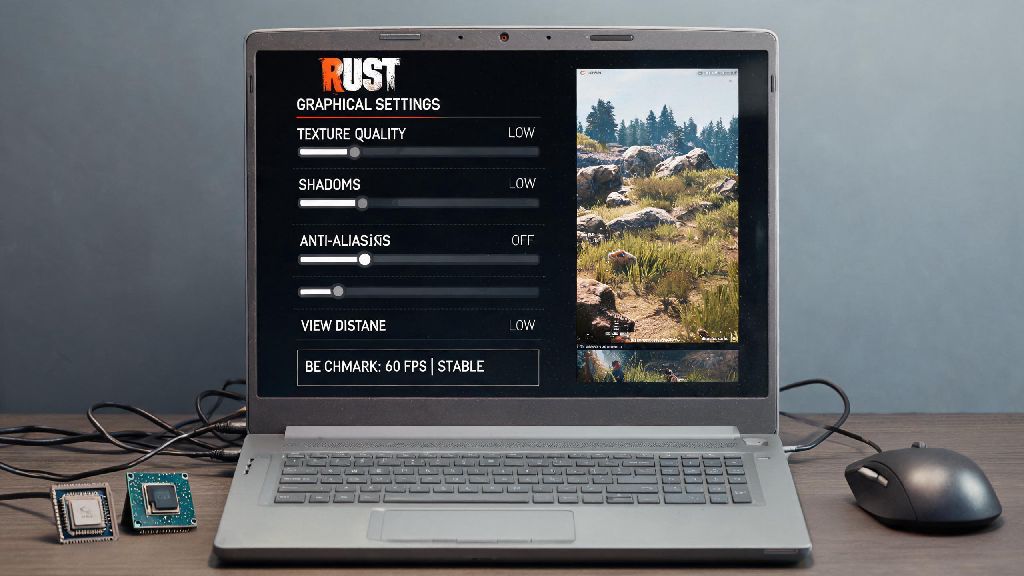
First, adjust your view distance to between 1500 and 2000. You don’t need to see 5 kilometers across the map when you’re looting a small monument or building a base near the coast, and dropping this setting down from the default 3000 can give you a 15-20% fps boost immediately. The only downside is you won’t spot enemy players from as far away, but that’s a fair tradeoff for playable framerates when you’re just starting out.
Next, turn shadow quality completely off. Shadows are by far the biggest performance hog in Rust, and disabling them can give you up to 30% more fps with almost no impact on gameplay. You won’t be able to see enemy shadows around corners, but most low end players find that the extra fps is well worth that small disadvantage.
Anti-aliasing should be set to FXAA or turned off entirely – TAA and MSAA eat 20-30% of your fps for almost no visible benefit on 1080p or lower resolution screens. If you’re playing on a 720p screen, you can turn anti-aliasing off completely and barely notice a difference. You can keep texture quality at medium if you have at least 4GB of VRAM, otherwise drop it to low. Low textures can make it hard to tell small loot items apart from the ground, so only go that low if you have no other option. Turn off all extra visual effects, including grass displacement, ambient occlusion, depth of field, motion blur, and lens flare. None of these add anything to gameplay, and they all eat up valuable fps.
Finally, Set the game to run in fullscreen mode, not borderless windowed – that frees up 10-15 fps on most systems because it gives Rust priority access to your GPU resources, instead of sharing them with other open apps. When you’re trying to play Rust on a low end pc, every single fps counts, so this small change is well worth making.
Adjust Windows and GPU Settings for Extra Performance Gains
Your in-game settings are only half the battle. The way your operating system and GPU are configured can have just as big an impact on your Rust performance as the settings you pick inside the game. Most people leave their Windows settings on default, which are designed for general use, not gaming.
First, make sure you have all background apps closed before launching Rust. Browsers with 10 open tabs, Discord, streaming software, even extra file explorer windows can take up gigabytes of RAM that the game needs to run smoothly. If you have 8GB of RAM or less, closing all background apps is non-negotiable, otherwise you’ll get constant crashes when loading into large servers.
There are a few quick Windows tweaks you can make in 2 minutes to get extra fps:
If you’re using integrated graphics, head to your GPU’s control panel (Intel Graphics Command Center for Intel, NVIDIA Control Panel for NVIDIA, AMD Radeon Software for AMD) and set Rust to high performance mode. Turn off any power saving features for your GPU, as these will throttle performance to save battery on laptops.
If you have Rust installed on a hard disk drive (HDD), consider moving it to a solid state drive (SSD) if you have one available. Load times will be 3-4 times faster, and you’ll get far less stutter when new areas of the map load in as you move around. If you don’t have an SSD, defrag your HDD once a month to keep load times as fast as possible. If you have less than 16GB of RAM, increase your virtual memory to 20GB minimum. Virtual memory uses space on your hard drive as extra RAM, which prevents crashes when you load into busy servers with lots of player-built bases.
Pick the Right Servers to Reduce Stutter and Load Issues
A lot of low end players don’t realize that server choice has a huge impact on how well Rust runs on their system, even if all their settings are fully optimized. Large, busy servers put far more strain on your CPU and RAM than smaller ones, because your system has to process data from every player, every player-built base, and every plugin running on the server.
Stick to servers with 50 or fewer players if you’re on a low end PC – you’ll get way less stutter when multiple players are nearby, and load times will be 30-40% shorter than on 100+ player official servers. You’ll also have less competition for loot, which is a nice bonus for new players.
Avoid modded servers with lots of custom assets, like new weapons, custom skins, new map areas, or custom vehicles. All of these extra assets have to load into your RAM while you play, which causes constant lag spikes and frequent crashes. If you prefer modded servers over vanilla ones, look for ones that only use quality of life plugins, like increased stack sizes or faster crafting, with no custom visual assets.
Also, try to pick servers that are located within 100 miles of your location. Servers that are far away will have higher ping, which causes input lag that makes the game feel sluggish even if you’re getting 30+ fps. Most server browsers let you filter by location and ping, so you can easily find servers that are close to you. I’ve found that vanilla community servers with 30-40 players are the sweet spot for low end rigs. They have enough players to keep the game fun, but not so many that your system can’t keep up. I used to crash every 10 minutes on official 100-player servers, but after switching to smaller community servers, I can play for 3-4 hours straight without a single crash.
Use Legitimate Performance Mods (And Avoid Scams)
If you’ve tweaked all your settings and still aren’t getting playable framerates, there are a few legitimate performance mods that can help you get an extra boost, but you have to be careful where you get them. There are hundreds of fake “Rust FPS booster” programs online that are just malware designed to steal your Steam account information or install viruses on your computer, so never download anything from an untrusted site.
The most popular legitimate performance mod for low end players is the Low End Graphics mod, which is hosted on official Rust modding community hubs. This mod disables all unnecessary visual effects entirely, replaces high-res textures with optimized low-res versions that are still easy to tell apart, and removes small decorative objects from the map that don’t impact gameplay. It can boost your fps by 20-30% on most low end systems, without making the game unplayable.
Only download mods from trusted, official community hubs to avoid malware or account bans. Also, keep in mind that most performance mods are not allowed on official Rust servers, so you can only use them on community servers that explicitly allow modded clients. Always check the server rules before joining with a modded client, otherwise you might get banned from the server.
If you don’t want to use mods, you can also use a lightweight game launcher that automatically closes all background processes, adjusts your power settings, and optimizes your GPU settings for Rust before launching the game. These launchers don’t modify the game files at all, so they’re allowed on all servers, and they can give you a small fps boost without any extra work on your part. Stay away from any program that claims to give you 100+ fps on a 10 year old laptop, or that asks for your Steam account login information. These are always scams, and they’ll do more harm than good to your system and your account.
You don’t need a $2000 gaming rig to have fun with one of the most popular survival games ever made. I still play Rust regularly on my 7-year-old laptop, and I have just as much fun as my friends with high end rigs, even if my graphics don’t look as pretty. With a few small tweaks to your in-game settings, system configuration, server choices, and optional mods, learning how to play Rust on a low end pc is far easier than most people think. You might not get 60 fps on max settings, but you’ll get a stable, playable experience that lets you loot, build, and fight without constant frustration. Don’t let your old hardware stop you from jumping into a server this weekend.