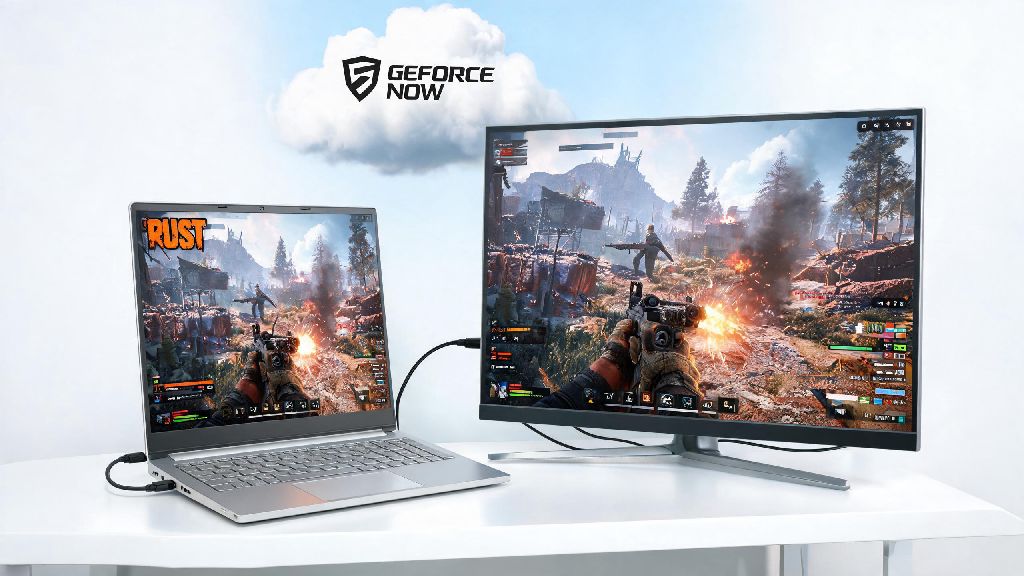
If you’ve ever stared at your 5-year-old laptop wishing you could jump into a Rust wipe with your friends without dropping $1,000 on a new graphics card, you’re not alone. Thousands of players skip the hardware upgrade hassle entirely when they learn how to play Rust on GeForce Now, NVIDIA’s cloud gaming service that runs high-end games on remote servers and streams the feed straight to your existing device. I’ve been using this setup for two years, playing Rust on everything from a cheap Chromebook to my work laptop while traveling, and it’s far more reliable than most people assume, as long as you set it up correctly. You don’t need any fancy technical skills to get it working, just a stable internet connection and 10 minutes to walk through the setup steps.
Pre-Requisites for Smooth Rust Cloud Gaming Performance
Before you even open the GeForce Now app, you need to check a few boxes to avoid frustrating lag or login errors mid-wipe. I’ve skipped these steps before and lost 2 hours of progress because my internet cut out right as I was raiding a nearby base, so trust me when I say these non-negotiables are worth checking first. The core requirements are simple, and most people already meet them if they stream 4K video regularly.
If you only have a 30 Mbps connection, you can still play, but you’ll need to turn down the stream quality in settings to avoid constant buffering. You also don’t need to install Rust on your local device at all, which is a huge plus if you only have 20GB of free storage left on your laptop.
Step-by-Step: How to Play Rust on GeForce Now
Once you’ve checked all the pre-requisites, the setup process takes less than 10 minutes from start to finish. I’ve walked three of my less tech-savvy friends through this process over voice chat, and none of them hit any snags. First, download the GeForce Now app for your device from the official NVIDIA site, or access the web version if you’re on a Chromebook or device that can’t install new apps. Log in with your GeForce Now account, then use the search bar at the top of the app to look for Rust.
When you select Rust from the search results, you’ll be prompted to link your Steam or Epic Games account if you haven’t already. This is a one-time step, and NVIDIA never gets access to your account password, so you don’t have to worry about security risks. Once linked, click the “Play” button, and the service will connect you to a remote server that has Rust pre-installed. You’ll see a standard Rust loading screen just like you would if you were running the game locally, and you can log into your existing Rust profile just like normal.
One thing to note: All your Rust progress, skins, and server favorites are saved to your Steam/Epic account, not the GeForce Now server, so you won’t lose any of your existing stuff when you switch to cloud play. I was worried about this at first, but all my 200+ hours of progress and rare skin collection were exactly where I left them when I first logged in via GeForce Now.
Optimization Tips to Cut Lag and Boost Gameplay Quality
Even if you have a great internet connection, default GeForce Now settings can leave you with annoying input lag or blurry graphics that make it hard to spot enemies when you’re playing Rust on GeForce Now. These small tweaks take 2 minutes to apply and make a massive difference in how responsive the game feels. First, open the GeForce Now settings menu before you launch Rust, and set the stream quality to “Custom” instead of auto. Auto settings often lower quality unnecessarily when your internet has a tiny speed blip, so manual control gives you more consistent performance.
Set your frame rate cap to 60 FPS unless you have a 120 Hz display and a Priority subscription, which supports up to 120 FPS streaming. Set the bitrate to match your internet speed: for 50 Mbps, use 35 Mbps bitrate, for 100 Mbps use 70 Mbps, leaving enough headroom for other devices on your network to run without interfering with your stream. Once you launch Rust, turn off vertical sync (VSync) in the in-game settings, as this adds extra input lag that’s extra noticeable with cloud streaming.
Another underrated tip: Turn off any background downloads or video streams on other devices on your network while you play. I used to get constant lag spikes every evening until I realized my roommate was streaming 4K Netflix in the other room, eating up half my bandwidth. If you can’t ask people to pause their streams, use your router’s QoS (Quality of Service) setting to prioritize GeForce Now traffic over other devices.
Fixes for Common GeForce Now Rust Errors
Even with perfect setup, you might run into a few common errors that stop you from launching Rust, but most of them have quick, easy fixes. Most issues with playing Rust on GeForce Now are minor and take less than a minute to resolve. The most common issue I see is the “Rust failed to sync” error that pops up when you first launch the game. This usually happens when your Steam/Epic account link is outdated, so all you need to do is go to your GeForce Now account settings, unlink your store account, then re-link it again. That fixes the issue 90% of the time.
Another common problem is random disconnects mid-game that don’t correspond to internet outages. This is usually caused by outdated GeForce Now app files, so check for app updates first, then clear the app cache if the problem persists. If you get a “server queue full” error on the free tier, you don’t have to wait 20 minutes for a spot: try switching to a less populated server region in your GeForce Now settings, and you’ll often get in instantly.
If you notice that your mouse input feels delayed even with good internet, turn off mouse acceleration in both your device’s system settings and the Rust in-game settings. Cloud streaming already has a tiny amount of inherent input lag, so eliminating extra acceleration makes the game feel almost exactly like it’s running locally. I also recommend using a wired mouse and keyboard instead of Bluetooth if you can, as Bluetooth connectivity adds a small amount of extra lag that adds up during fast gunfights.
At the end of the day, you don’t need a top-tier gaming PC to enjoy all the chaos of Rust wipes with your friends. Whether you’re traveling for work, stuck with a low-end laptop, or just don’t want to spend money on a new graphics card right now, learning how to play Rust on GeForce Now is a low-effort, low-cost way to get into the game without sacrificing most of the performance you’d get from a local setup. I still use it all the time when I’m away from my main gaming rig, and I’ve even won multiple 1v3 gunfights while playing on a Chromebook via cloud streaming. Just follow the setup steps, apply the small optimization tweaks, and you’ll be looting bases and fighting off rivals in no time, no expensive hardware required.