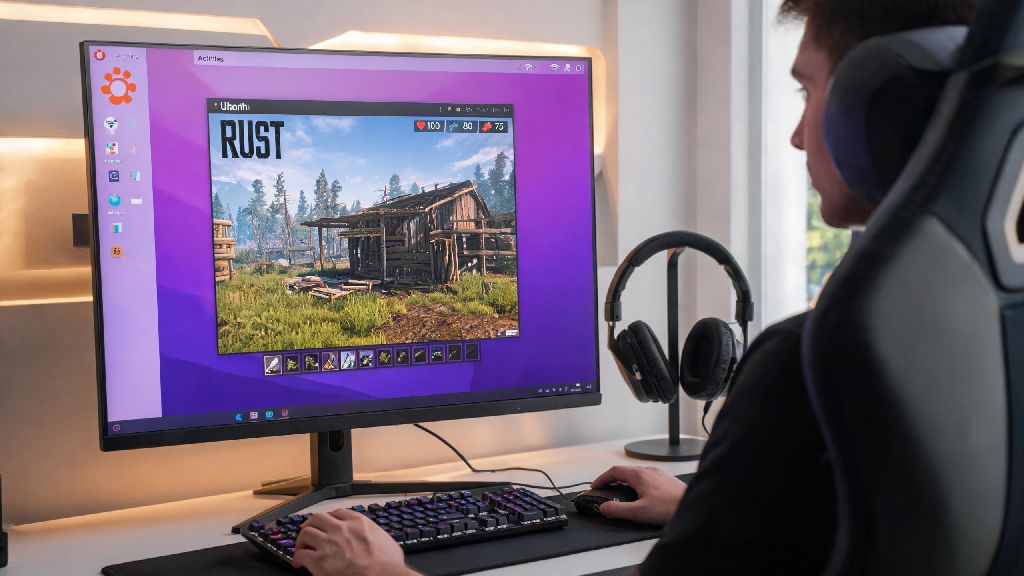
If you're a Linux user who loves open-world survival games, you've probably wondered if you can jump into Rust without switching back to Windows. A lot of players assume the anti-cheat and performance barriers make it impossible, but that's not true anymore. I've been running Rust on my Ubuntu setup for over two years, and I've worked through all the common bugs and compatibility issues to put together a simple, tested workflow. This guide will walk you through exactly how to play Rust on Linux, from initial setup to post-install tweaks that keep your frame rate high and crashes rare.
Pre-Requisites to Run Rust on Linux Smoothly
First, you need to make sure your system meets the base requirements, plus a few extra Linux-specific bits. Your distro should support the latest Proton versions — most popular options like Ubuntu, Fedora, Pop!_OS, and Manjaro work out of the box, but we recommend sticking to a rolling release or LTS distro that gets regular graphics driver updates. You also need to have Steam installed, since that's the only official platform for Rust on desktop right now.
For AMD GPUs, the open-source Mesa drivers that come preinstalled on most distros are more than enough, but Nvidia users will need to install the proprietary 525+ driver series to avoid anti-cheat errors. If you're not sure what drivers you're running, you can check your system info menu or run a quick terminal command to confirm. Also, make sure you have at least 30GB of free SSD storage, as Rust's regular updates take up a lot of space, and running it off an HDD will lead to unbearable load times.
Step-by-Step Guide to Play Rust on Linux via Steam
First, open Steam and head to your settings menu. Under the "Compatibility" tab, check the box that says "Enable Steam Play for all other titles", and select the latest Proton Experimental version from the dropdown. Proton Experimental is the most reliable option for Rust, as it gets regular patches for new game updates and anti-cheat changes. Once you've enabled that, restart Steam to apply the changes.
Next, search for Rust in the Steam store, purchase it if you don't already own it, and hit install. The install process works exactly the same as it does on Windows, so you don't need to do any extra file tweaks during this step. Once it's installed, don't launch it right away. Right click on Rust in your Steam library, select "Properties", then head to the "Launch Options" box. Paste in the following line: PROTONENABLENVAPI=1 %command% — this fixes common Nvidia GPU crashes and allows the game to access your full GPU feature set. AMD users can skip this line, but adding it won't cause any issues.
Now you can launch the game for the first time. The first launch will take a few extra minutes as Proton sets up the compatibility layer, so don't panic if it seems stuck on the loading screen for 2-3 minutes. Once you get to the main menu, you can adjust your graphics settings as you normally would. A lot of players like to test their settings in a private server first before jumping into a high-stakes public match, and if you want a quick break while you wait for a server to load, you can load up a casual mini-game to pass the time. Many Rust players I know boot up Rummy Grand between long queue times, as its fast-paced rounds fit perfectly into 5-minute gaps without pulling your focus away from the game you're waiting to join.
Common Fixes for Rust Linux Compatibility Issues
Even if you follow the setup steps exactly, you might run into a few common issues that most Linux Rust players face at some point. Most of these are easy to fix in under a minute, with no advanced technical knowledge required:
Most of these fixes take less than a minute to apply, and you won't have to redo them every time you launch the game. I used to get EAC kicks every other launch until I switched to Proton Experimental, and I haven't had an issue in over 8 months. If you run into a problem that isn't listed here, the Linux Gaming subreddit has a huge archive of Rust-specific fixes from other players.
Performance Tweaks to Boost Rust Frame Rate on Linux
Once you have the game running stable, you can make a few small tweaks to get even better performance, especially if you're running on a lower-end system. First, disable compositing while you're playing — most desktop environments have an option to automatically turn off compositing for full-screen apps, which can add 10-15 extra frames per second for almost no effort. You can also install a tool called Feral GameMode, which automatically optimizes your system resources for gaming when you launch a Steam title. It's available in the default repos for most distros, and you just need to add gamemoderun %command% to your launch options to enable it.
Another simple tweak is to lower your shadow and view distance settings first if you're struggling for frames — those two settings have the biggest impact on Rust performance, regardless of what OS you're running. Avoid using any third-party performance mods that claim to boost your frame rate, as most of them are flagged by EAC and will get you banned from public servers. You also don't need to run any custom Proton builds for Rust, as the official Experimental version gets all the necessary patches first, well before they roll out to stable Proton releases.
Once you work through the initial setup, you'll find that running Rust on Linux is just as smooth and reliable as running it on Windows, if not more so. You don't have to deal with random Windows updates interrupting your gameplay, and you get the added privacy and customization benefits of running a Linux distro. Whether you're a casual player who only jumps in a few times a month or a competitive player who grinds wipes every week, learning how to play Rust on Linux is a simple process that pays off immediately. Just follow the steps we outlined, test your settings before jumping into a public match, and you'll be raiding bases and surviving the wilderness with no extra hassle in no time.