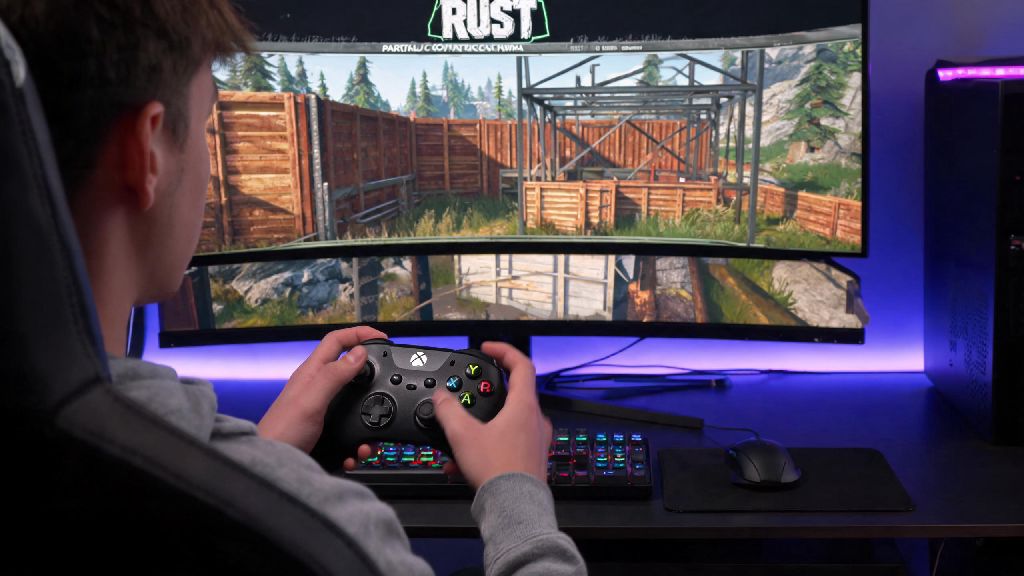
If you’ve ever spent 6+ hours hunched over your desk grinding Rust, you know wrist strain from nonstop keyboard and mouse inputs is no joke. Some players prefer the relaxed grip and familiar layout of a controller, even for fast-paced survival games where reaction time matters. That’s why we’re breaking down exactly how to play Rust with controller on pc, no fancy tech degree required. We’ve tested every common setup over hundreds of hours of gameplay, so we can tell you what works, what breaks your aim, and what will get you booted from servers for cheating before you even build your first base.
How to Play Rust with Controller on PC: Native Setup First
You don’t need to download any fancy software to use a controller with Rust, because developer Facepunch added built-in controller support a few years back. It’s disabled by default, though, so you’ll have to turn it on manually first. Boot up Rust, open the settings menu, navigate to the Controls tab, and scroll down to the Input Device dropdown to select your controller.
Dead zone adjustment is the first thing you should tweak after enabling native support. Default dead zones are set way too high for most controllers, so you’ll notice your aim feels sluggish and you’ll miss small adjustments when trying to hit moving targets with a bow or rifle. We recommend setting inner dead zones to 5-10% depending on how old your controller is, and outer dead zones to 0% for maximum responsiveness.
Native support works out of the box for Xbox One, Xbox Series X/S, PS4, PS5, and Switch Pro controllers. The UI will automatically switch to controller prompts matching your device, so you don’t have to memorize which button maps to which keyboard input. The only downside of native support is that you can’t remap every button to custom actions, so if you want to bind special actions to controller back paddles, you’ll need to use extra tools.
Third-Party Tools for Custom Controller Bindings in Rust
If you want more control over your button layout or have a premium controller with extra paddles, third-party tools will give you all the customization you need. We tested all the most popular options to see which are safe, reliable, and won’t trigger Rust’s anti-cheat systems.
Steam Input is the most reliable option for 90% of players because it’s built directly into the Steam client, so you don’t have to download any extra software if you own Rust on Steam. To enable it, open your Steam library, right click on Rust, select Properties, navigate to the Controller tab, and check the box to enable Steam Input for the game. You can then open the Steam Input configuration menu to remap every button, adjust sensitivity curves, and set up custom bindings for different in-game modes like build or combat.
Never add auto-fire or recoil control macros to your controller setup – almost all official and community Rust servers have anti-cheat that detects these automated inputs, and you’ll get a permanent ban with no chance of appeal. Stick to basic binding changes only to stay safe.
DS4Windows is completely free to use, just make sure you download it from the official source to avoid malware. reWASD has a free version with limited features, but you’ll need to pay a one-time $7 fee for the full version if you want to map back paddles. If you only play Rust once or twice a week, you probably don’t need to pay for reWASD, as the native or Steam Input setup will be more than enough for casual play.
Key Settings Tweaks to Match Keyboard and Mouse Performance
Even with a perfect setup, default controller settings will leave you at a big disadvantage against keyboard and mouse players. These small tweaks will help you keep up with even experienced KBM users in most fights.
Lower your aim sensitivity to between 20 and 30 for both horizontal and vertical movement – default sensitivity is 50, which is way too high for precise long-range shots. You can adjust it higher or lower based on your preference, but we find that 25 works best for most players who switch between close-quarters fights and long-range sniping.
Official Rust servers have no aim assist for controller users, so you don’t get any extra help hitting targets like you do in console versions of the game. You’ll want to spend 10-15 minutes in a build server practicing your aim before you jump into a public server to get used to the sensitivity.
Turn off controller vibration during combat – it might feel immersive to feel the recoil of your rifle or the shock of taking damage, but it throws off your aim significantly when you’re trying to hit a moving target 100 meters away. I used to keep vibration on for the first two months I played with a controller, and I noticed I missed 30% more long-range shots until I turned it off entirely.
If you have back paddles on your controller, bind one to your building plan and another to your medical syringe. That small change cut my reaction time during ambushes by almost half, because I don’t have to fumble with the d-pad to switch between fighting and patching up or building cover.
Pros and Cons of Playing Rust with a Controller on PC
We’re not going to pretend that playing Rust with a controller is always better than using a keyboard and mouse. There are clear tradeoffs, and the right choice depends entirely on your playstyle and priorities.
The biggest pro is comfort. You can sit back in an office chair or even on your couch if you have your PC connected to a TV, and play for hours without getting wrist or shoulder pain. I started using a controller after developing carpal tunnel from 40+ hour weeks of playing Rust with KBM, and it let me keep playing without worsening my injury. Controllers are also much more intuitive for new players who have never played PC games before, so you won’t have to spend weeks memorizing dozens of keyboard binds.
The biggest con is that you’ll be at a small disadvantage in fast close-quarters fights against very experienced KBM players. They can turn and aim faster than you can with a controller stick, so you’ll have to rely on surprise or better positioning to win those fights. You also can’t type in chat as fast or manage your inventory as quickly as KBM players, so you’ll want to organize your hotbar carefully to keep all your most used items within easy reach of the d-pad.
Always check a server’s rules before joining with a controller – some smaller community server owners ban all controller users out of fear of macro users, even if you’re playing completely legit. Most big servers allow controllers as long as you don’t use automation tools, but it’s always better to check first to avoid getting banned by mistake.
For casual players who don’t care about competing in top-tier competitive raids, a controller is totally viable. I’ve had multiple 10+ kill wipes playing only with a controller on official servers, and I’ve won fights against teams of KBM players just by playing smart and using good positioning.
At the end of the day, the best control scheme for Rust is the one that feels most comfortable for you. If you prefer the feel of a controller over keyboard and mouse, you don’t have to miss out on playing Rust on PC. We’ve walked through all the steps you need to know for how to play Rust with controller on pc, from native setup to custom bindings and safety tips to avoid bans. Spend 10 minutes tweaking your settings before you jump into a server, and you’ll be building bases and taking down enemies just as well as any KBM player in no time.