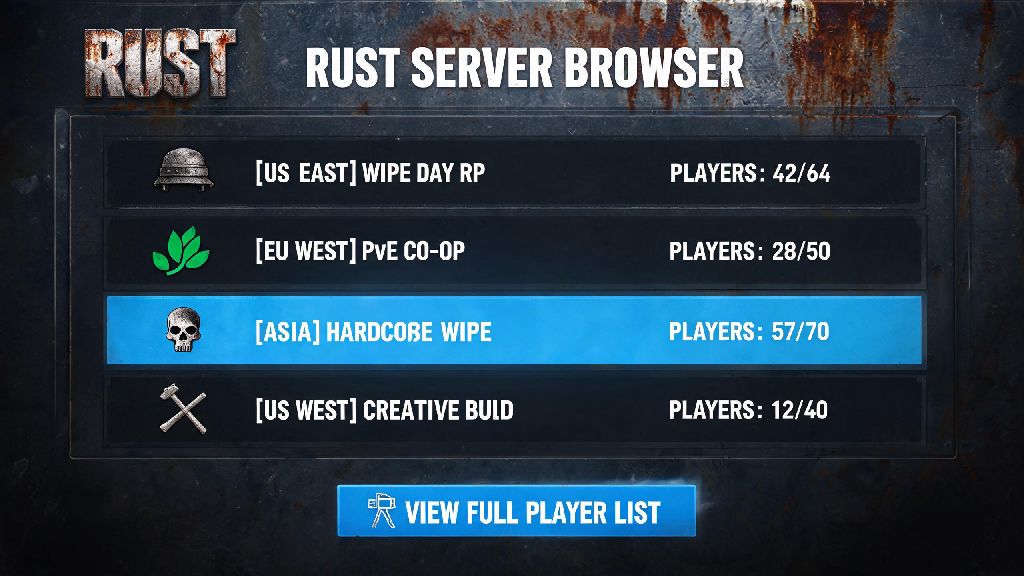
If you’ve ever sat through two minutes of Rust load time just to find a server with 3 total players or a lobby full of people you’ve had bad run-ins with before, you know how frustrating that wasted time feels. That’s exactly why knowing how to check Rust player list before you even click “join” is one of the most useful small skills you can pick up for the game. I’ve been playing Rust on and off for 6 years, and I still use this trick every single wipe to pick the right server for my group. This guide covers every method for both regular players and server admins, no fancy paid tools required.
How to Check Rust Player List Before Joining a Server
The simplest, most reliable method works for all public servers listed in the official Rust in-game browser, and you don’t need any extra software to use it. First, open Rust and navigate to the “Play” tab to pull up the full server list. You’ll see a rough player count next to each server name, but to view the full list of individual users, right click the server name and select the “View Players” option from the dropdown menu. You can also see each player's play time on the server from this menu, which is a great way to tell if the server has a consistent loyal community.
So what if you’re looking for a specific friend? You can use the search bar at the top of the player list pop-up to type in their in-game name or Steam ID to see if they’re online. This method works 99% of the time for public vanilla servers, but it only shows currently connected players, not people waiting in the queue. This method only shows players currently connected, not queued users, so if a server says it has 50/50 players, you might still see 50 names even if 20 people are waiting to get in.
Methods for Checking Player Lists on Private or Modded Servers
If the server you want to join is private, unlisted on the official Rust browser, or runs heavy mod packs, the in-game method might not work, but you still have options. The easiest alternative is Steam’s built-in server viewer. Open your Steam client, click the “View” tab in the top menu, select “Servers”, then add the private server’s IP address to your favorites list. Right click the server name and select “View Players” to pull up the full list, just like you would in the Rust game client. You don't need to be a server admin to use this method for most private servers, as long as the server has standard Steam integration enabled, which 99% of active Rust servers do.
For heavily modded servers that use custom frameworks, many server owners publish a public player list on their community website or Discord server. These lists often include extra info like what team each player is on, their in-game rank, or even recent stats like kills and base raides. Some roleplay servers hide player lists to prevent meta-gaming, but most will still share approximate population counts in their Discord announcement channels if you ask politely.
What to Do If You Can't Access a Rust Server's Player List
Sometimes you’ll click “View Players” and get a blank screen or an error message, and that’s usually down to a small fixable issue, not a server block. First, make sure your Rust client is fully updated, as outdated game versions often can’t pull full server data properly. If that doesn’t work, try the following troubleshooting steps:
If the server intentionally hides its player list, usually to prevent stream sniping during big events or to stop players from targeting low-pop teams, don’t try to bypass the block. Never download third-party tools that claim to unlock hidden player lists, as most of them contain malware or will get your Rust account banned for violating Facepunch’s anti-cheat policies. It’s not worth risking your account just to see who’s online before you join.
Advanced Tips for Server Admins to Manage Player Lists
If you run your own Rust server, checking the player list comes with extra features that regular players don’t have access to. The fastest way to pull up a full admin-level player list is to open the in-game console by pressing F1, then type the “players” command and hit enter. You’ll see a full list of every connected user, their Steam ID, ping, play time on the server, and even their IP address if you have full admin permissions. You can sort the player list by play time or ping to spot users who might be causing lag or breaking server rules without scrolling through dozens of names manually.
I run a small 20-player vanilla Rust server for my friend group, and I use this feature at least once a day to check for suspiciously high ping users or people who have been online for 12+ hours straight, which is usually a sign of an AFK player hogging a slot. If you want to hide your server’s player list to prevent stream sniping during events, you can edit your server config file to disable public player queries, just be aware that this might reduce new player joins, since most people won’t waste time joining a server if they can’t confirm it has active players first. We usually toggle the list visibility on and off for special wipe days, and post hourly population updates in our Discord to make up for the hidden list.
At the end of the day, taking 30 seconds to check Rust player list before you join a server can save you from wasting time on empty lobbies, avoiding toxic players you've run into before, or finding a server with the exact population size you prefer. You don’t need any special tools for most cases, just the in-game browser or Steam’s built-in server viewer. If you run into issues, the troubleshooting steps we covered will fix 90% of common access problems, so you can get back to looting and building without extra hassle.