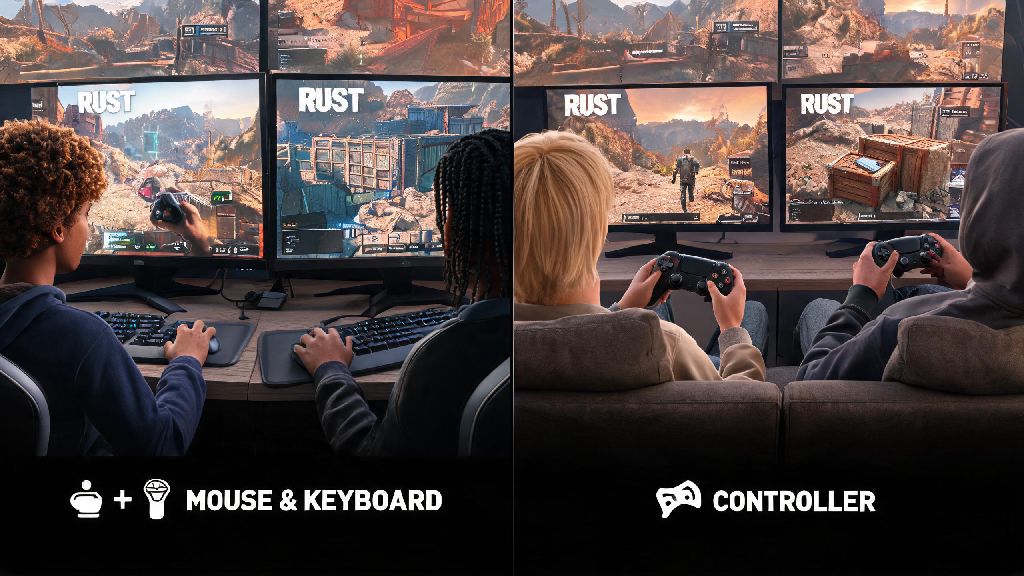
If you’ve ever felt fatigued after hours of hunching over a mouse and keyboard while grinding Rust, or you just prefer the relaxed feel of a gamepad for casual play sessions, you’re not alone. Many players want to know how to play Rust with a controller, even though the game was originally built for mouse and keyboard input. The good news is it’s completely possible, and with a few tweaks, you can hold your own against other players without sticking to a desk setup. I’ve tested controller play on both PC and console versions of Rust over the past two years, so I’ll walk you through exactly what works, what doesn’t, and how to avoid common frustrations.
How to Play Rust With a Controller: Initial Setup Walkthrough
For console players, setup is almost zero work: just plug in your controller or connect it via Bluetooth, and Rust will recognize it immediately when you launch the game. PC players have a few extra steps, but they take less than two minutes total. First, open your Steam library, right click on Rust, select Properties, then head to the Controller tab. Make sure the dropdown is set to Enable Steam Input instead of using the game’s default controller support. This fixes most compatibility issues with third-party controllers, including older Xbox One models and off-brand gamepads. If you’re using a PlayStation 5 controller, you’ll need to make sure Steam Input is set to PlayStation configuration support to get full access to the touchpad and haptic feedback, which makes controller play for Rust feel much more immersive.
Once you launch Rust, head to the Controls settings and toggle "Controller Enabled" on at the top of the menu. You’ll see the control scheme pop up automatically, and you can tweak individual binds if you don’t like the default layout. One thing I wish I knew when I first tested controller play: don’t skip the calibration step in Steam’s controller settings. Calibrating your thumbsticks will eliminate unintended drift, which is a common issue that can make aiming feel sluggish or jittery before you even adjust in-game settings.
Optimal Controller Settings to Reduce Input Lag and Improve Aim
Default controller settings for Rust are designed for casual play, not for competing against other players. If you want to win gunfights and build quickly, you’ll need to adjust a few key settings first. I’ve tested dozens of configurations, and these are the settings that consistently give the best performance:
To cut down on input lag, make sure you turn off VSync and motion blur in your graphics settings. Both of these features add extra delay between your controller input and what you see on screen, which can make even the best sensitivity settings feel unresponsive. If you’re playing on PC, you can also enable High Performance Mode for Rust in your Windows settings to prioritize the game’s access to your system resources. I’ve seen this cut input lag by as much as 20% on mid-range laptops, which makes a huge difference in fast-paced fights.
Key Pros and Cons of Using a Controller for Rust
Before you commit to switching entirely to controller play, it’s important to understand the tradeoffs. I split my playtime 50/50 between controller and mouse and keyboard, so I’ve seen both sides clearly. The biggest advantage of controller play is comfort: you can sit back on a couch, play on a big screen, and avoid the wrist and shoulder pain that comes with long mouse and keyboard sessions. It’s also much easier to make smooth, consistent movements for things like driving vehicles or patrolling your base, which feels clunky with a keyboard for many new players. Many casual players find that the comfort of controller play far outweighs the small competitive disadvantage, especially if you mostly play Rust with friends in PvE or low-stakes PvP servers.
That said, there are some real downsides you can’t ignore. The biggest one is building speed: even with optimized settings, you won’t be able to build as fast as a skilled mouse and keyboard player in high-stakes PvP fights. Aiming at long range is also harder with a controller, since thumbsticks don’t offer the same level of precision as a mouse. You will be at a slight disadvantage in competitive 1v1 fights against top-tier mouse and keyboard players, but that doesn’t mean you can’t win if you play smart and use cover to your advantage. I’ve won plenty of fights against mouse and keyboard players using a controller, simply by sticking to close-quarters combat and catching opponents off guard.
Pro Tips to Compete Effectively With a Controller in Rust
If you’re set on using a controller as your main input method, there are a few small tricks that will help you close the gap with mouse and keyboard players. First, practice building in a private server for 10 minutes before every play session. Muscle memory is everything for controller play, and repeating simple build sequences every day will cut down your build time dramatically after a couple of weeks. You should also prioritize close-range weapons like shotguns and SMGs over long-range rifles, since these play to the strengths of controller aim assist. You can still carry a rifle for long-range sniping if you want, but don’t rely on it as your primary weapon in PvP.
Another tip I swear by: remap your build and attack buttons to the back paddles if your controller has them. This lets you build, shoot, and jump without taking your thumbs off the thumbsticks, which is a game-changer for reaction speed. If you don’t have paddles, you can remap the build menu to one of your shoulder buttons instead of a face button to get a similar effect. Don’t be afraid to tweak your binds every few days until you find a layout that feels natural for your playstyle, there’s no one-size-fits-all solution. I went through four different bind layouts before I found one that felt comfortable enough for regular play.
At the end of the day, the best input method for Rust is the one that lets you have fun and play consistently. Learning how to play Rust with a controller takes a little bit of practice and tweaking, but it’s absolutely worth it if you prefer the comfort of a gamepad over a desk setup. You don’t have to be at the top of every leaderboard to have a good time looting, building bases, and playing with friends. Give the settings and tips we covered a try, and adjust them as you go to fit your own playstyle.