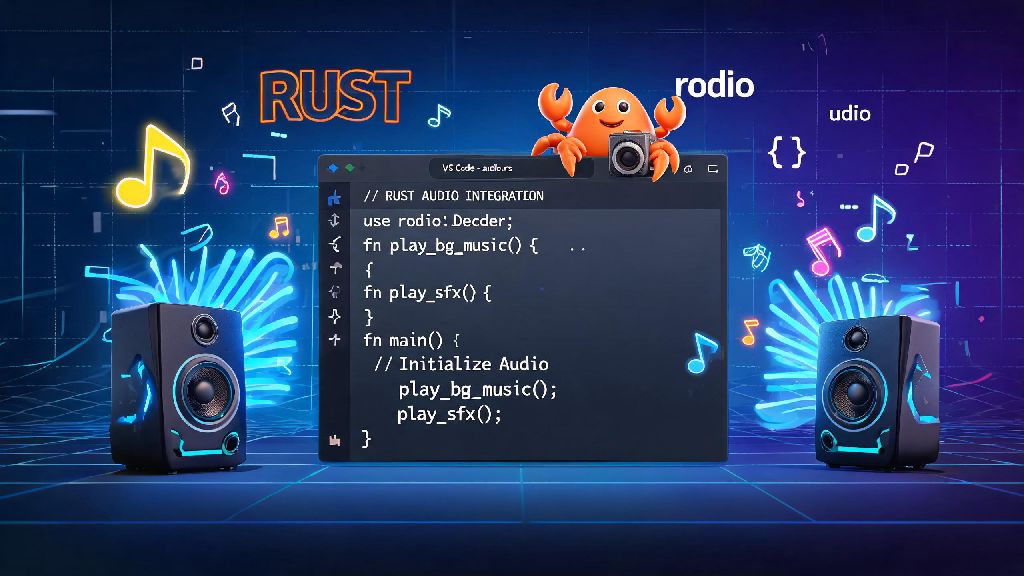
If you’ve ever built a Rust game, desktop app, or interactive tool, you’ve probably wondered how to add engaging audio layers to make your project feel more polished. Learning how to play music in Rust is far simpler than most developers assume, even if you have no prior audio programming experience. You don’t need to write complex low-level audio code from scratch, either—there are mature, well-maintained crates and tools that handle most of the heavy lifting for you. Whether you’re building a 2D platformer, a productivity app with notification sounds, or a custom media player, this guide will walk you through everything you need to get audio running reliably in your Rust codebase.
First: Pick the Right Rust Audio Crate for Your Use Case
The Rust ecosystem has dozens of audio crates, but not all are built for simple music playback. Many are designed for low-level audio processing or live sound synthesis, which is overkill if you just want to play a background track or short sound effect. For anyone just starting out learning how to play music in Rust, sticking to well-documented, widely used crates will save you hours of frustration debugging obscure compatibility issues. Before you write any code, take 2 minutes to map your project needs to the right tool.
For 90% of use cases, rodio is the best first pick. I’ve used it for half a dozen small Rust projects, from a Pomodoro timer with alert sounds to a simple 2D puzzle game, and I’ve never run into compatibility issues with it. The only time I’d recommend picking something else is if you’re already working within a specific framework like Bevy, or you need advanced audio processing features that rodio doesn’t offer.
Step-by-Step: How to Play Music in Rust With Rodio
Once you’ve picked rodio as your crate of choice, getting your first track playing takes less than 10 lines of code. First, add the rodio dependency to your Cargo.toml file. You can either add it manually or run cargo add rodio in your project directory to pull the latest stable version.
Next, prepare your audio file. Save your MP3, WAV, or OGG track in the root of your project folder, or in a dedicated assets folder if you prefer to keep your project organized. Make sure the file path you use in your code matches the actual location of the file, or you’ll run into file not found errors when you run your program.
The core of the playback code is simple: you first create an audio device, then load your audio file, then create a decoder and play it on the device. Make sure you keep the playback handle alive for as long as you want the music to play—if the handle goes out of scope, Rust’s borrow checker will drop it immediately, and the audio will cut out mid-playback. That’s the most common mistake new developers make when working with audio in Rust, so it’s worth double-checking your variable scopes before you debug anything else.
If you want to loop the track, adjust the volume, or fade the audio in or out, rodio has built-in methods for all of those functions. You don’t have to write any custom code to adjust playback settings, which saves a ton of time compared to building audio functionality from scratch.
Fixing Common Audio Playback Issues in Rust
Even with a mature crate like rodio, you might run into small issues when you first set up music playback. If you're troubleshooting how to play music in Rust, start with these common fixes first. Most of these issues have simple solutions, and you don’t have to dig into low-level audio code to resolve them. I’ve run into almost all of these at least once, so these fixes are tested and proven to work for most projects.
One of the most common issues is choppy or distorted audio. This almost always happens because you’re running the audio playback on the main thread of your application, especially if your main thread is handling heavy tasks like rendering graphics or processing user input. The fix is simple: spawn a dedicated thread for audio playback, or use an async runtime to handle audio in the background without blocking the main thread. Rodio handles thread safety out of the box, so you don’t have to worry about race conditions or memory unsafety when moving the playback handle to a separate thread.
Another common issue is audio not working on certain operating systems. If your code works on Linux but not on Windows, it’s almost always because you’re missing a system audio dependency. For Windows, you don’t need any extra dependencies, but for Linux, you may need to install the ALSA development package with sudo apt install libasound2-dev on Debian-based systems. Rodio’s documentation has a full list of system requirements for each OS, so it’s worth checking that if you run into cross-platform issues.
If you’re working with WebAssembly, you might run into issues with audio autoplay policies. Most browsers block audio from playing until a user has interacted with the page first. Make sure you trigger audio playback only after a user click, tap, or key press if you’re building a WASM app, otherwise the audio will be blocked by default. That’s not a Rust-specific issue, but it’s one that trips up a lot of developers who are new to building web-based Rust apps.
Advanced Tips for Better Audio Performance in Rust
Once you have basic music playback working, you can tweak your implementation to get better performance, lower latency, and more reliable playback across all devices. These tips will help you get the most out of any setup for how to play music in Rust, especially if you’re building a game or real-time app where audio latency can ruin the user experience.
First, preload all your audio files at app startup, instead of loading them right when you need to play them. Loading a large audio file from disk takes time, and if you try to load it mid-game or mid-interaction, you’ll get a noticeable delay before the audio starts playing. Preloading files into memory when your app first launches eliminates that delay entirely, and it’s simple to implement with rodio’s built-in buffer types.
Use compressed audio formats for longer tracks to reduce memory usage. WAV files are uncompressed and take up a lot of memory, so they’re only good for short sound effects that need zero latency. For background music or longer tracks, use MP3 or OGG, which take up a fraction of the memory with almost no perceptible loss in audio quality for most use cases.
If you need to play multiple tracks at the same time, like background music plus sound effects, use rodio’s built-in mixer to handle all audio streams through a single output device. This reduces the overhead of managing multiple audio devices, and it lets you adjust the volume of different audio layers independently without writing extra code. For projects that need extremely low audio latency, like rhythm games or live audio tools, consider using cpal instead of rodio, and tweak the buffer size to the smallest possible value that doesn’t cause choppy audio. Smaller buffer sizes mean lower latency, but they require more processing power, so you’ll need to test different values to find the right balance for your target hardware.
Adding audio to your Rust project doesn’t have to be a complicated, time-consuming process. With the right crates and a few simple best practices, you can learn how to play music in Rust in an afternoon, even if you have no prior audio programming experience. Start with rodio for basic use cases, test your implementation across your target operating systems, and preload your audio files to get the best possible performance. Before you know it, you’ll have polished, immersive audio in all of your Rust projects.